
SecurePoint Visitor adjudication
Adjudication: a person decides every possible match.
When screening finds a possible match, the visit is held and the case goes to the compliance queue. An authorized reviewer compares the listing with the visitor and records Not a Match, Approve Visit, Deny Access or Send for Senior Review, with a reason, on the audit trail.
Pictured: the adjudication queue for a demo organization, with fictional visitors held for review.
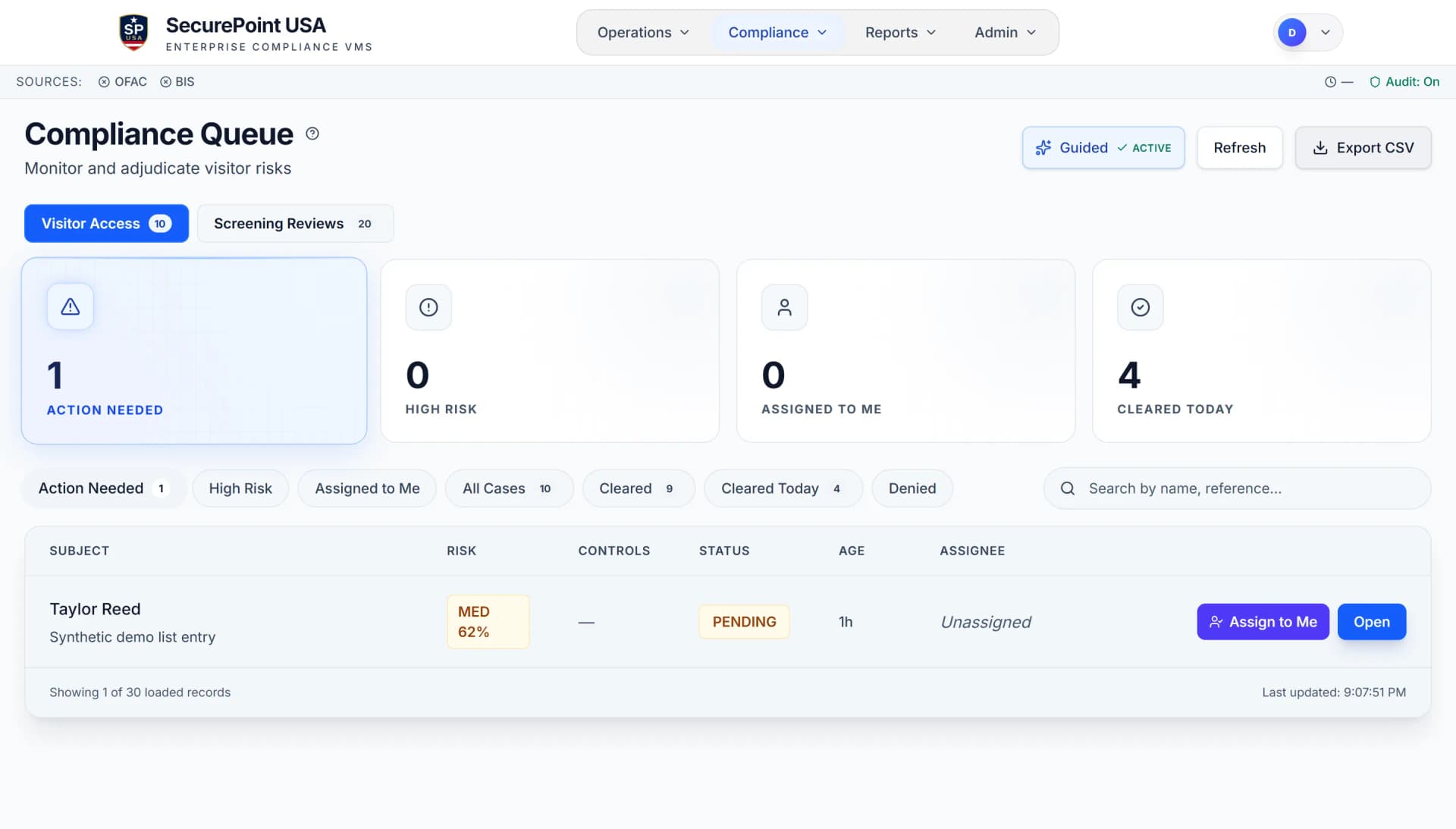
- Held until a person decides
- A possible match stops the badge until a reviewer records a decision.
- Fuzzy matching, not AI
- Names are scored against a threshold, and common names need a stronger match before they are flagged.
- Reasons on the record
- Each decision carries the reviewer, the time and a reason.
- Strong matches take more
- Clearing one takes a stated reason, and the strongest need evidence or a second reviewer.
- Age and owner on every case
- The queue shows how long each case has waited and who it is assigned to.
- Only authorized roles decide
- By default, org admins and compliance managers.
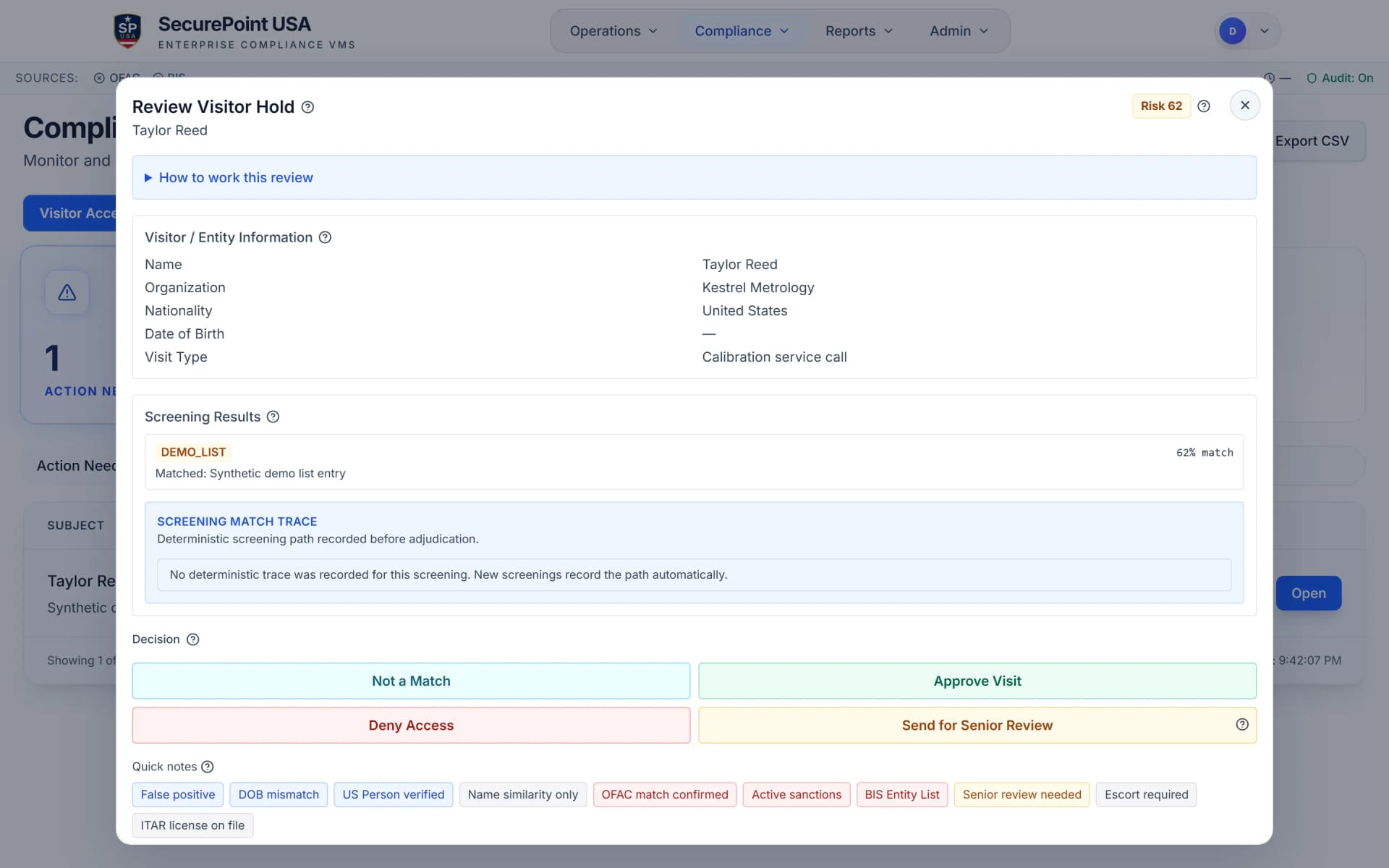
How a held visit is decided.
The case opens in the compliance queue with the screening result attached.
The listing and the visitor, side by side.
The case shows the visitor's details, the list that matched, the match score and the screening trace recorded before review. The reviewer chooses Not a Match, Approve Visit, Deny Access or Send for Senior Review.
Insert the comparison adds a line to the reviewer's note from the comparison on screen: the closest list entry, date of birth and country.
Watch a reviewer clear a case that is not the listed person.
The reviewer compares the closest match with the visitor's ID, chooses Not a Match, picks the reason and writes a note. The decision is saved with the reviewer's name, role and the time.
Read the transcript
Step 1. Open the case and read the summary line.
Step 2. Check the closest match. Here the date of birth is different.
Compare it with the visitor's ID, not only with what they typed at check-in.
Step 3. In the decision column, choose Not a Match. The text under it tells you what happens next. It clears the list match only. Host verification still applies.
Step 4. This match is strong, so the program asks why. Choose Date of birth does not match.
Step 5. Write the note. Say what you compared and what was different. Insert the comparison adds the details from the screen.
Write it for someone who reads it a year from now.
Step 6. Select Confirm Decision. Your name, your role and the time are saved with it.
The case leaves the queue. The host still confirms the visitor before a badge prints.
How to read a possible match.
Step by step: read the summary line, compare the visitor's details with the list entry one row at a time, check the list version, and look at every other possible match before you decide.
Read the transcript
A case opens when a visitor's name is similar to a name on a screening list. This video shows how to read one.
Step 1. Start at the top. The header shows who the visitor is, who they came to see, and where. It also tells you the visitor is on hold.
Step 2. Read the summary line. It tells you how many possible matches there are, on which lists, and which is closest.
Step 3. Check the closest match. The visitor's details sit beside the list entry's, one row per detail.
Read each row. Here the names are similar and the country is the same.
The date of birth is different. That is often the clearest sign this is a different person.
Some details cannot be compared, because one side does not have them. The ID document row is always yours to check against the visitor's document.
Step 4. Under the table, check which list this is, the entry ID, and the list version that was used.
Step 5. Look at every other possible match before you decide.
If a word is new to you, the question mark beside it explains it.
The similarity percent puts the matches in order. It is not a decision. You decide.
Step 6. When you have looked at every possible match, move to the decision column on the right.
A company case reads the same way. There is no date of birth, so compare the company's records with the list entry.
What each decision takes.
The rules are in the product: a decision missing what its rule asks for is not saved.
| Decision | Requires | Detail |
|---|---|---|
| Not a MatchNot the listed person or company | A note | Every Not a Match carries a note. For a candidate scoring 90% or higher, or one from the OFAC SDN List, the BIS Entity List, the BIS Denied Persons List or the ITAR Debarred List, the reviewer also picks a reason from a fixed list. |
| Not a Match on the strongest matches95% or higher | Evidence or a second reviewer | The reviewer records that the date of birth or ID document does not match the listing, or sends the case to a different reviewer to confirm. |
| Approve VisitA real match, allowed in | License on file | Approving a high-risk case takes a note. Approving a hard-list match or a very high risk score takes the license, exemption or legal approval ID, who issued it, and uploaded evidence. |
| Deny AccessThe visit does not go ahead | A reason and a note | The reviewer picks a denial reason and explains it in a note. |
| Send for Senior ReviewEscalate the case | A reason | The visit stays held, and the case is marked for senior review with the reason recorded. |
What the queue covers, and where it stops.
Each line says what is built in, what is optional, and what does not change a decision.
| Area | Status | What it means |
|---|---|---|
| Held visits | Built in | The Visitor Access tab: visits held by screening at registration, the kiosk or the front desk. |
| Bulk, manual and API screenings | Built in | The Screening Reviews tab: possible matches from screenings that are not tied to a visit. |
| AI match summary | On by default | An AI-written summary of the screened name appears beside the match evidence. It runs by default after the screening is recorded, its provider is on the Subprocessors page, and it never makes the decision. |
| OFAC 50% ownership | Shadow by default | Ownership analysis runs on companies screened through the API and records its result without changing the decision. Ownership is not traced for visitors or their employers. |
Related pages
See a held visit decided, start to finish.
We'll hold a possible match, work the review, and show the decision in the audit trail and the evidence pack.
Frequently asked questions
- What is adjudication in SecurePoint?
- It is the review step after screening finds a possible match. The visit is held, an authorized reviewer compares the listing with the visitor, and the decision, the reviewer, the time and a reason are recorded.
- Does AI make the decision?
- No. Name matching is fuzzy matching, not AI. By default an AI-written summary of the screened name appears beside the match evidence. A person makes every decision on a possible match.
- Who can decide a held visit?
- By default, org admins and compliance managers. Hosts cannot decide a possible match; they see their visitor as Under security review until the reviewer decides.
- Can a reviewer clear a strong match with one click?
- No. Clearing a strong match as Not a Match takes a reason from a fixed list and a note, and a match scoring 95% or higher also needs a date-of-birth or ID mismatch, or a second reviewer.
- What happens to the visitor while a case is open?
- The visit stays held and the badge does not print. At sites with autonomous check-in, a visitor still in compliance review cannot be picked for Host Verify, and an open review keeps the visit from being closed overnight.