SecurePoint Certified Hardware Program
Badge printers, labels, and kiosk kits verified to work with SecurePoint check-in. Use equipment you already own, request SecurePoint Certified hardware, or reorder supplies — whichever fits your site.
SecurePoint autonomous Brother printing requires a Windows x64 print host. Snapdragon and other ARM-based Windows devices may run the SecurePoint kiosk but require a separate Windows x64 front desk computer or SecurePoint Print Bridge for automatic badge printing.
The device a visitor checks in on and the computer that drives the printer do not have to be the same machine. Find the row that matches what you already have, or plan to buy.
| Deployment path | Check-in device | Print host | How badges print |
|---|---|---|---|
| One-device autonomous kioskSecurePoint Certified | Windows 11 on an Intel or AMD x86-64 processor, running the SecurePoint kiosk in the browser. | The same device. It runs the Brother Windows driver and the SecurePoint Print Connector. | Badges print automatically when a visitor completes check-in. No one has to tap anything.Requires a supported Brother Windows driver and the SecurePoint Print Connector installed on the kiosk device. Windows ARM and Snapdragon devices cannot do this. |
| Existing front desk print relaySecurePoint Certified | Any device your staff already use for check-in, including the front desk computer itself. | An existing Windows x64 front desk PC running the Brother driver and the SecurePoint Print Connector. | Badges print automatically at the front desk printer as soon as a check-in is approved.The front desk PC must be powered on and the Print Connector running for badges to print. |
| Snapdragon / Windows ARM kiosk with relaySupported with a separate print host | A Snapdragon or other ARM-based Windows device, such as a current Surface Pro, running the SecurePoint kiosk in the browser. | A separate Windows x64 computer. The ARM device itself cannot drive the Brother printer. | Badges print automatically at the Windows x64 print host while the ARM device runs check-in.Brother publishes no Windows-on-ARM driver for the QL series, and the SecurePoint Print Connector is packaged for Windows x64 only. A USB-C adapter or dock does not change this — the limit is the processor architecture, not the port. |
| iPad or Chromebook kiosk with Windows relaySupported with a separate print host | An iPad or Chromebook running the SecurePoint kiosk in the browser. | A separate Windows x64 computer running the SecurePoint Print Connector. | Badges print at the Windows x64 print host. The iPad or Chromebook itself does not print.Neither iPadOS nor ChromeOS can drive a Brother label printer for SecurePoint badge printing. Do not wire a printer to these devices. SecurePoint has verified iPad front desk check-in; Chromebook check-in is not verified by SecurePoint. |
| Android assisted printingAssisted printing | An Android tablet with the Brother Print Service Plugin and the printer paired to the tablet. | The tablet itself, through the Android system print dialog. | The Android print dialog opens and a person taps Print to release each badge.Every badge needs a person at the tablet to confirm the print dialog. Choose a Windows x64 print host instead if badges must come out with no one present. |
On the Windows device, open Settings → System → About → System type and read the value next to System type.
A web page cannot prove the processor architecture of the machine it is running on, so this is the one place to confirm it. If the device is already deployed and you are unsure, SecurePoint will check it with you.
Do not purchase a kiosk device until SecurePoint confirms the processor architecture and printing configuration.
Send us the model and the System type value and we will confirm, in writing, whether that device can print badges on its own or needs a separate print host. There is no charge for this.
Confirm compatibility with SecurePointAlready have a Brother QL-820NWB and DK-2251 labels? Add it under Settings → Printers inside SecurePoint. No purchase required. Older Brother QL models already registered with SecurePoint keep working.
Need a printer, a front desk kit, or a Kiosk Deployment Package? Request a hardware quote below and a SecurePoint contact will follow up with pricing and lead time. Confirm your check-in device with SecurePoint first.
See certified hardwareRunning low on labels? Request a refill or a three-roll pack — the same DK-2251 roll your printer already uses.
See badge suppliesBadge printing starts from an authorized SecurePoint visit record, helping keep the physical badge tied to the same check-in, approval, and audit trail.
The SecurePoint Print Connector runs on the customer-managed workstation and sends authorized badge jobs to the locally configured printer. That workstation is the print host, and it has to be a Windows x64 computer running the Brother Windows driver. It does not have to be the same device visitors check in on.
Android tablets print through the browser and the Brother printing path instead of the Print Connector. A person taps Print in the Android system print dialog to release each badge. See the setup documentation for the supported device paths at your site.
“Compatible now” means SecurePoint has verified it against a live check-in workflow. “Available by request” means there is no self-checkout yet — a SecurePoint contact follows up with pricing.
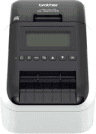
The Brother QL-820NWB label printer verified for SecurePoint visitor badge printing.
A DK-2251 continuous label roll verified against SecurePoint badge templates.
Three DK-2251 label rolls bundled for front desks that print badges daily.
A certified printer, approved labels, and complimentary remote setup for one front desk.
Complimentary remote setup & print validation included
Certified printer, labels, and complimentary remote setup for a new kiosk station. The check-in device is quoted separately.
Complimentary remote setup & print validation included
These are on the SecurePoint roadmap. They are not sold today and cannot be requested or quoted yet.
SecurePoint Print Bridge is planned hardware intended to let a separate tablet or kiosk send authorized badge print jobs through a single local print appliance, without a Windows x64 computer running the SecurePoint Print Connector. It would give ARM, iPad, and Chromebook kiosks an automatic printing path. It is not yet available and cannot be purchased, so sites planning a deployment today still need a Windows x64 print host.
SecurePoint Kiosk App is a planned native application for iOS and Android intended to run the SecurePoint check-in kiosk experience outside a browser tab. It is not yet available and cannot be purchased.
No. If you already have a Brother QL-820NWB and DK-2251 labels, add it under Settings → Printers inside SecurePoint — no purchase required. Older Brother QL models already registered with SecurePoint keep working; they are not offered for new red and black badge deployments because they do not print the red channel SecurePoint visitor badges use.
No. Brother publishes no Windows-on-ARM driver for the QL series, and the SecurePoint Print Connector is packaged for Windows x64 only. An ARM device can run the SecurePoint kiosk, but automatic badge printing needs a separate Windows x64 computer as the print host. Check Settings → System → About → System type before you order: it must read "x64-based processor" for a device to print badges on its own.
Not by itself. USB-C is solvable with Ethernet, Wi-Fi, a USB-C dock, or a USB-C-to-USB-B data cable. The requirement that cannot be solved with an adapter is the processor architecture: the print host still has to be Windows x64.
The Brother QL-820NWB with Brother DK-2251 labels. Brother also lists DK-2251 for the QL-800 and QL-810W; those are manufacturer-compatible candidates, not SecurePoint Certified, because SecurePoint has not verified them.
Request a hardware quote using the button on this page, or contact SecurePoint directly. There is no self-checkout yet — a SecurePoint contact follows up with pricing, lead time, and an invoice if that works better for your procurement process.
Not yet. Both are planned and not available for purchase. This page will be updated when they ship.
Yes. Both include complimentary remote setup and print validation from SecurePoint at no extra charge. Neither includes the check-in device or the Windows x64 print host computer.
Prefer to call or email instead of the contact form?